How to Avoid Duplicate GTIN Assignments
This helps prevent duplicate assignments and ensures new GTINs are assigned only from available positions.
Configure assignment ranges and exclusions
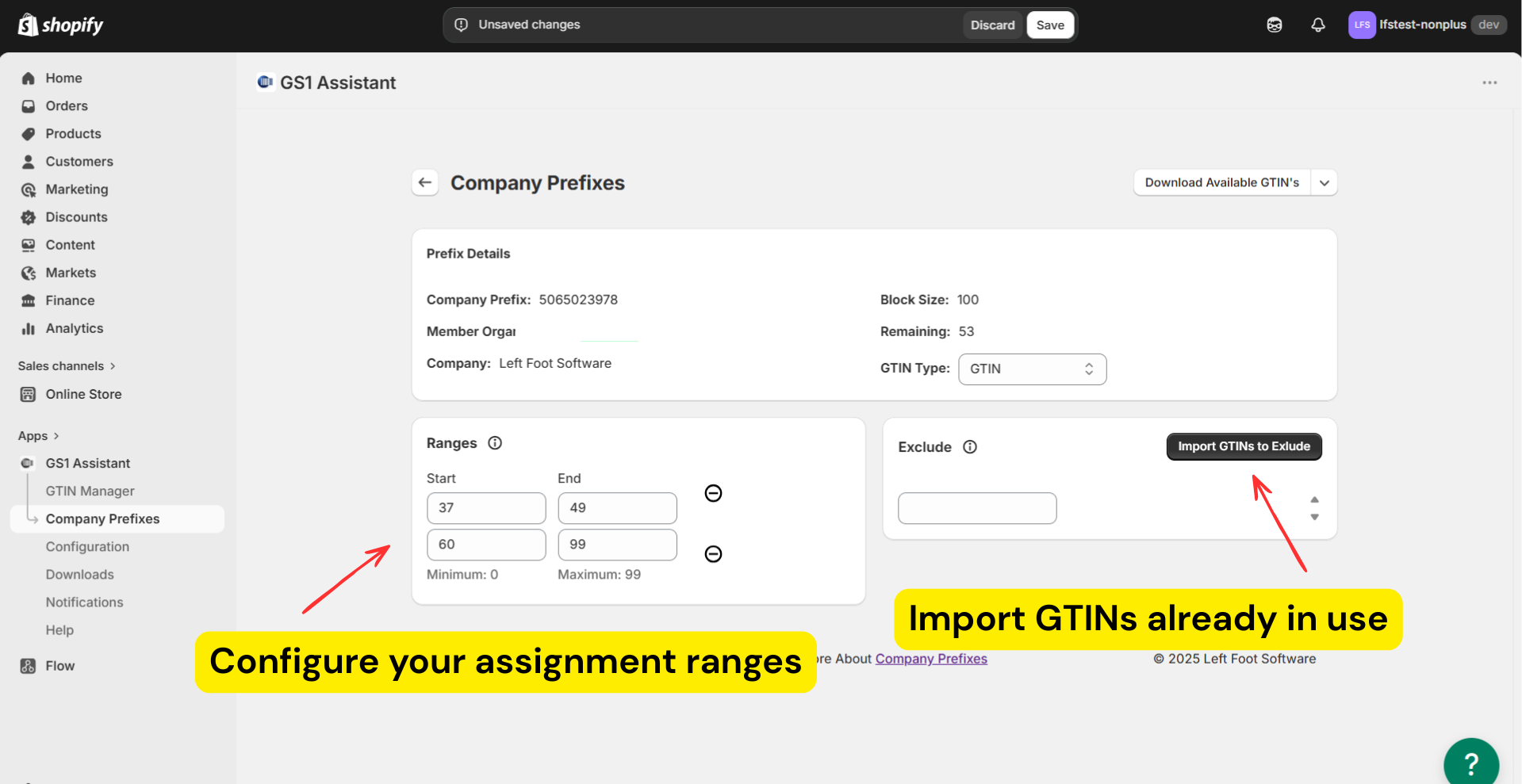
Use assignment ranges and excluded GTINs to prevent GS1 Assistant from reusing codes that are already assigned.
GS1 Assistant uses two methods to avoid duplicate GTIN assignments:
- Assignment ranges tell the app which GTIN positions it is allowed to assign.
- Excluded GTINs tell the app which specific GTINs should never be assigned, even if they are not currently attached to a Shopify product.
When duplicates can happen
GS1 Assistant checks your Shopify store before assigning GTINs.
If a GTIN is already assigned to a product variant in Shopify, the app skips it automatically.
Duplicates usually occur when GTINs have been assigned outside the current Shopify store and GS1 Assistant is unaware of them.
Common examples include:
- GTINs assigned manually before installing GS1 Assistant
- GTINs managed in spreadsheets
- GTINs assigned through your GS1 member organization's portal
- GTINs used in another Shopify store
- GTINs assigned in another ecommerce or inventory system
Products that were deleted from Shopify but still use GTINs elsewhere.
Using Assignment Ranges
Assignment ranges control which GTIN positions GS1 Assistant can use from your company prefix.
- If this is a brand-new prefix and no GTINs have been assigned yet, you can use the full available range.
- If you've already used part of your GTIN block, start your assignment ranges after the positions that have already been allocated.
Example — Create an assignment range:
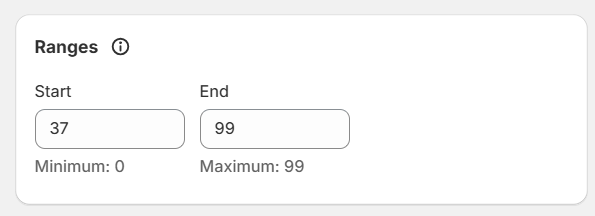
Using Multiple Ranges
You can create multiple assignment ranges when parts of your GTIN block are already reserved or allocated elsewhere.
Example:
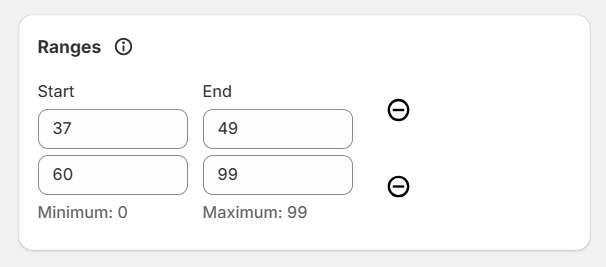
Import GTINs Already in Use
If you already have GTINs assigned outside Shopify, you can import them into the Exclude list.
Examples include:
- GTINs downloaded from your GS1 member organization
- GTINs assigned through another store
- GTINs managed in spreadsheets
- GTINs used by products that are no longer in Shopify
Click Import GTINs to Exclude and upload the GTINs that should never be assigned again.
GS1 Assistant will treat those GTINs as unavailable, even if they are not attached to a Shopify product.
Which method should you use?
Use Assignment Ranges when:
- Large sections of your GTIN block are already allocated
- You want to reserve blocks for future products
- You want to separate GTINs across stores, brands, or product lines
Use Excluded GTINs when:
- Specific GTINs are already in use
- You have a spreadsheet of assigned GTINs
- You want precise control over which GTINs can never be reused
Many merchants use both methods together.
If you've already created duplicates
If duplicate GTINs already exist, the dashboard will show them under the Duplicate filter.
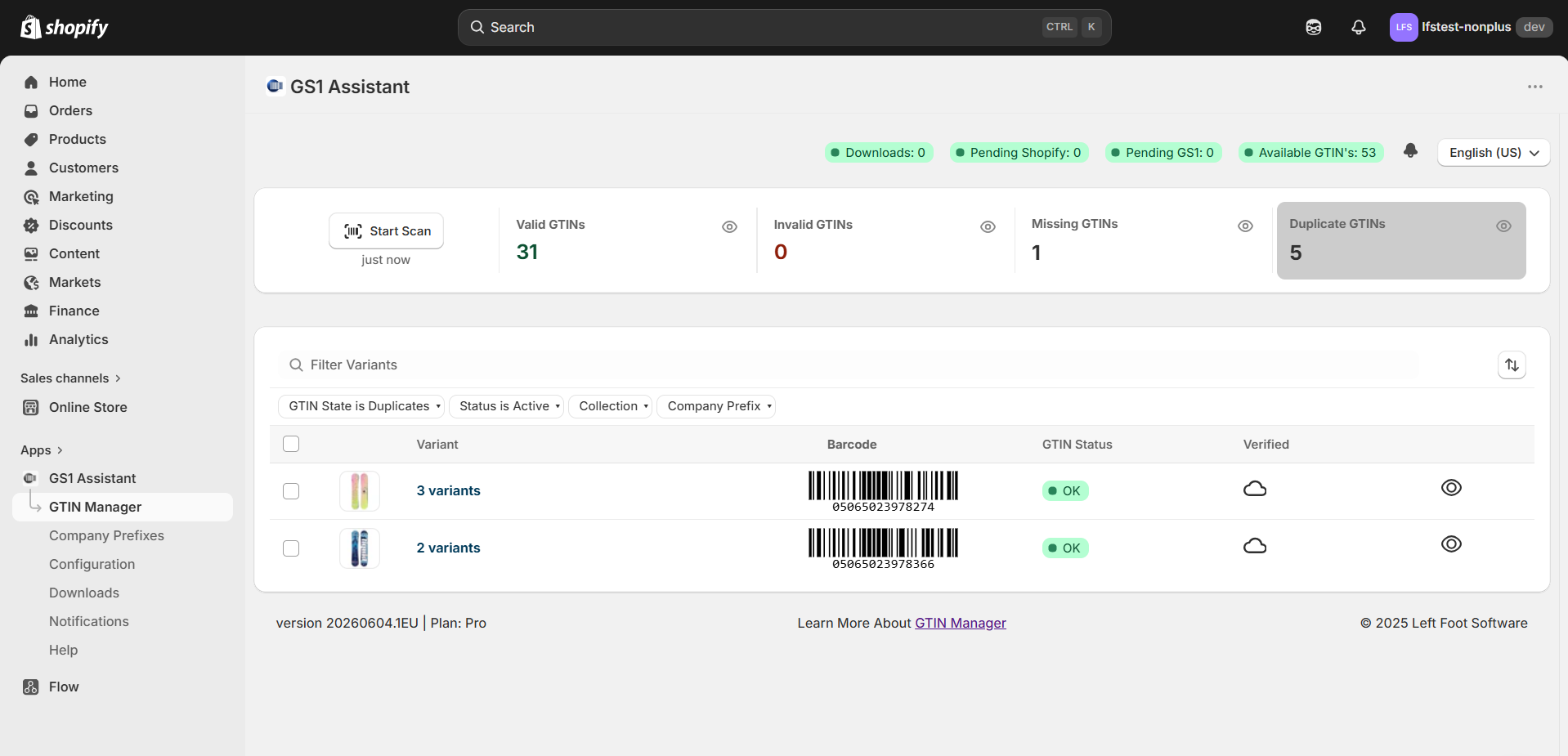
To fix them:
- Update your assignment ranges.
- Import any GTINs that should be excluded.
- Find affected products using the Duplicate filter.
- Unassign the duplicate GTINs.
- Assign new GTINs.
GS1 Assistant will issue replacement GTINs from available positions in your configured ranges.
How to Choose Your Assignment Ranges
If This Is a New Prefix
Use your full available range.
Example: 0–99
If You Already Assigned GTINs Manually
Determine which positions are already in use and create ranges that start after them.
Example:
- Used: 0–36
- Available: 37–99
- Range: 37–99
If You Have Reserved or Previously Assigned GTINs
Create multiple ranges.
Example:
- 37–49
- 60–99
This leaves positions 50–59 unavailable for assignment.
Not Sure How Many GTINs Were Already Used?
Check your GS1 member organization dashboard.
Most GS1 portals show:
- Allocated GTINs
- Registered products
- Used sequence counts
If you cannot determine the exact number, it's generally safer to leave a larger gap than to risk reusing an existing GTIN.
If You Used GS1 Assistant Before
If you previously used GS1 Assistant:
- On another store
- Before reinstalling
- In an older setup
Review your previous assignments before creating new ranges.
If available, use your GTIN logs or previous exports to identify the highest assigned positions.
Cannot Access Your Previous Data?
Contact support before assigning new GTINs.
Creating assignment ranges without knowing which GTINs are already in use can result in duplicate assignments.
Read next: Adding and Managing Your Company Prefix
Updated on: 10/10/2026
Thank you!